
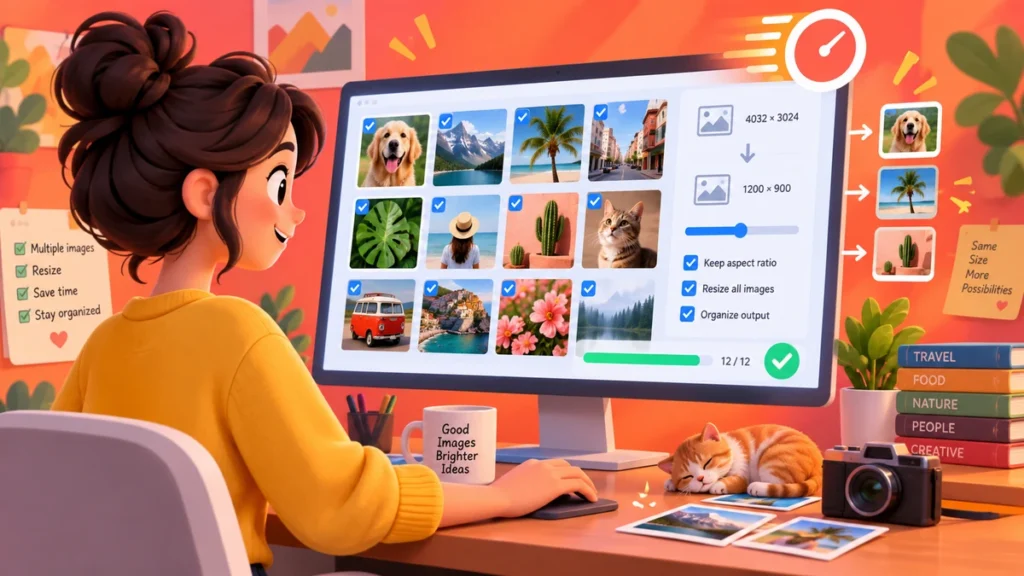
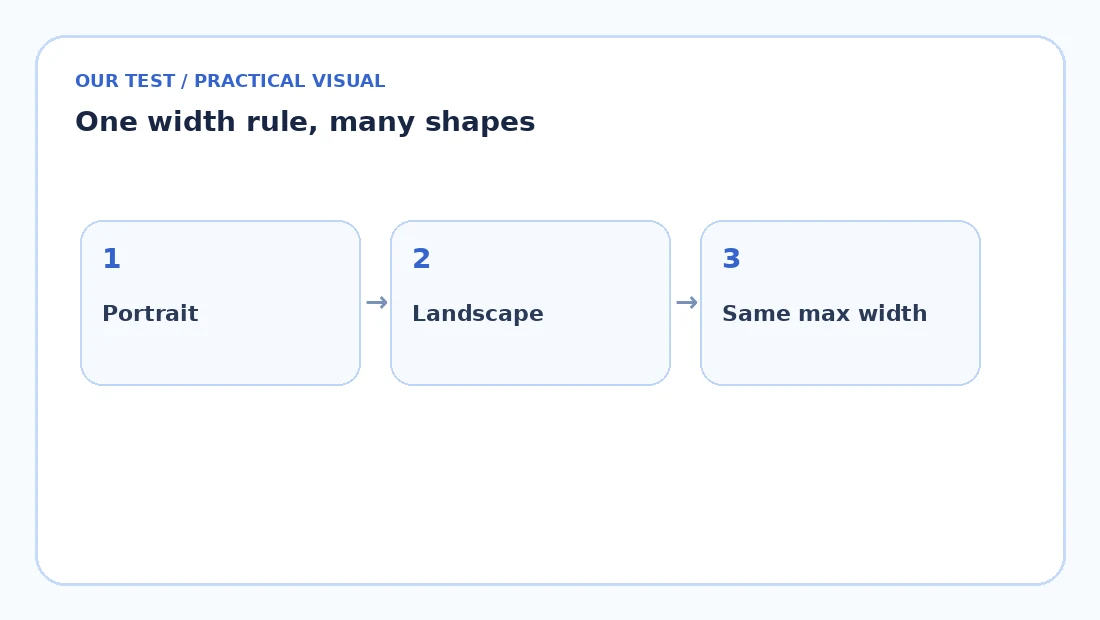
Batch resizing is most useful when you need a consistent maximum dimension, not identical shapes. Set one width or height, keep aspect ratio locked, and process the whole folder together. Portrait and landscape files can then remain proportional while sharing a practical size limit.
Choose a rule before choosing a number
For website content, a maximum width is usually easier to manage than an exact width-and-height box. For example, “no image wider than 1600 px” works for both portrait and landscape files. For a marketplace that requires a square product image, cropping or padding may be necessary after resizing.
Keep aspect ratio and avoid accidental enlargement
Two checkboxes prevent most batch mistakes: lock aspect ratio and do not enlarge smaller images. The first stops distortion. The second prevents a small source from being blown up and softened just because it was included in the same folder.
A reliable batch workflow
- Make a copy of the source folder.
- Choose the maximum width needed for the final destination.
- Resize with aspect ratio locked.
- Spot-check one portrait and one landscape image.
- Compress the resized batch if further savings are useful.
Resize and compression solve different problems
Resizing reduces pixel count. Compression reduces the number of bytes used to encode those pixels. A 5000-pixel photo may need both. An already correctly sized 1200-pixel image may only need compression.
Keep file names predictable
Batch tools are easiest to trust when outputs keep the source name with a clear prefix or suffix. That makes it obvious which result belongs to which source and reduces the risk of replacing originals before checking them.
Quick checklist before downloading
- Confirm the output dimensions and orientation.
- Check one detail-heavy area at 100%.
- Make sure transparency or background color is still correct.
- Use a clear output filename and keep the original until the result is verified.
These checks take less time than fixing a whole batch later, especially when the result is going into a website, marketplace listing or client deliverable.
Frequently asked questions
Can portrait and landscape images be resized together?
Yes. A width or height limit with aspect ratio locked keeps each image proportional.
Will batch resizing crop my images?
Not unless the tool explicitly includes cropping. Resizing changes dimensions; cropping removes part of the image.
What width should I use for website images?
Use the largest size the image is actually displayed at, allowing for high-density screens where appropriate.
Can I resize and compress in one workflow?
Yes. Resize first if the originals are oversized, then run the outputs through a compressor.
Bottom line
For most batches, one maximum dimension plus locked aspect ratio is safer than forcing every file into one fixed rectangle. Resize first when dimensions are excessive, then compress only if the new files still have meaningful savings available.



Questions or something we missed?
Share a question or useful detail. Comments appear after approval.
Be the first to start the conversation.